Quick answer
- Open freewatermarkcreator.com in Safari or Chrome on your phone.
- Tap Choose File and pick your photo.
- Type your @handle (or choose your logo), then adjust it while watching the live preview.
- Tap Upload Images, then Download Result. On iPhone, press and hold the image and tap Save to Photos to put it in your photo library.
What you need
- A web browser: Safari on iPhone, Chrome or your phone's own browser on Android. Nothing to install, no account.
- A photo up to 10 MB: JPEG, PNG, WebP or GIF. Most phone photos are well under this.
- For a logo watermark: your logo saved on the phone as a PNG with a transparent background. See how to prepare one.
iPhone photos: iPhones usually save photos in Apple's HEIC format, which our tool doesn't accept. When you pick a photo from your library in Safari, though, your iPhone normally converts it to JPEG automatically, so it just works. If you get an "Invalid file type" message, see troubleshooting.
Step by step
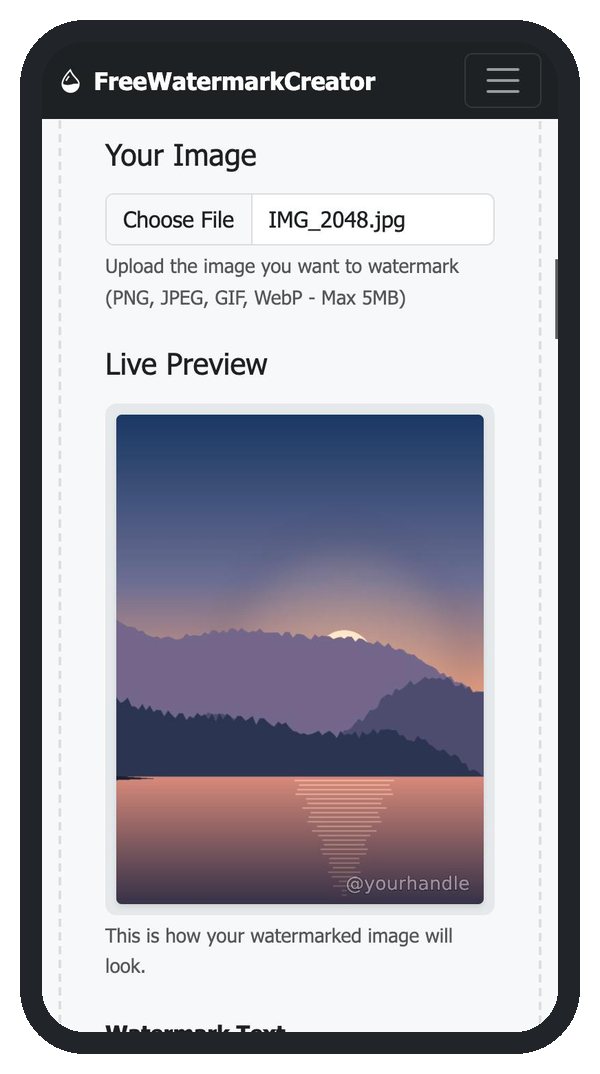
1. Open the tool and choose your photo
Go to freewatermarkcreator.com and scroll to Your Image. Tap Choose File. On iPhone, pick Photo Library; on Android, choose your photo from your gallery or files. Once it's chosen, the Live Preview shows your photo with a sample watermark.
2. Add your watermark and adjust it
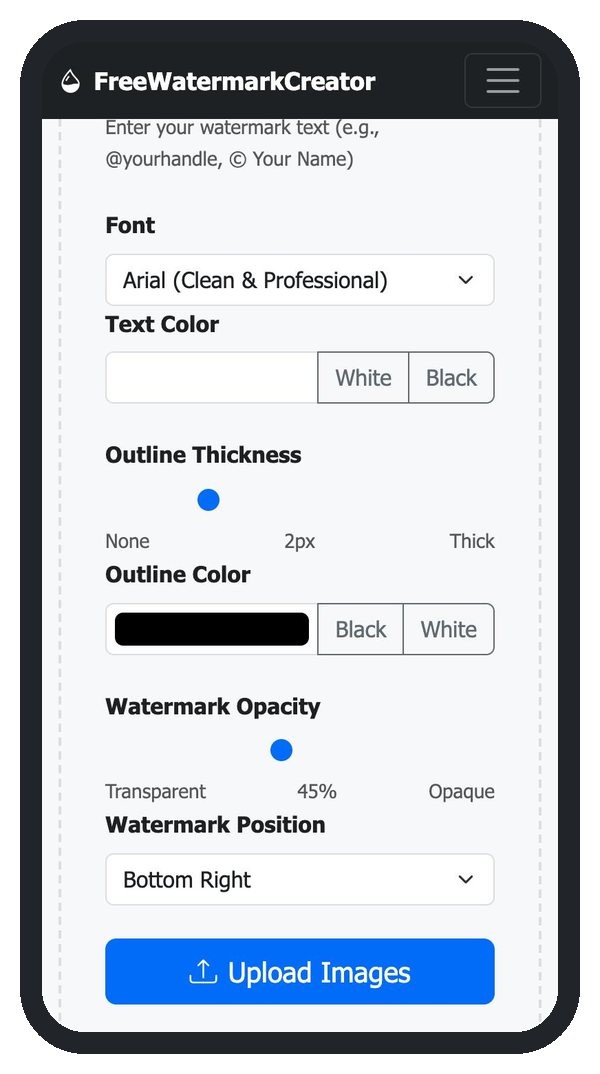
Leave Text Watermark selected and type your @handle or name, or switch to Logo/Image and choose your logo. Then set:
- Outline thickness: keep 2px, so the text stays readable on light and dark areas.
- Opacity: about 35-40% for social media.
- Position: bottom right for most photos.
On a phone the preview sits above the settings, so scroll up after each change to check it.
3. Upload and download
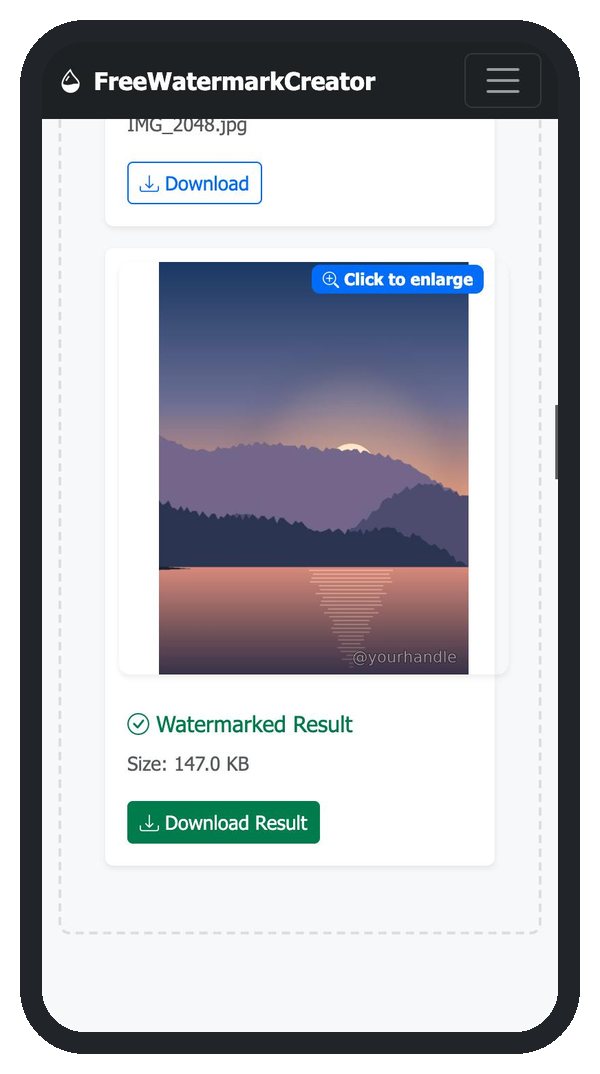
Tap Upload Images. Most photos take a few seconds; very large ones can take up to half a minute, so keep the page open. Your watermarked photo then appears with a green Download Result button.
Try it now on your phone. Free, no app, no sign-up.
Watermark a photoSave it to your photos
On iPhone: Download Result saves the file to the Files app (in Downloads), not to Photos. To put it straight into your photo library, press and hold the watermarked image on the page instead, then tap Save to Photos (called Add to Photos on older versions of iOS).
On Android: tap Download Result. The photo goes to your Downloads folder, and usually shows up in Google Photos or your gallery app under a Download album.
Photos are saved as high-quality JPEG files, so they're quick to download and every app accepts them. Images you upload as PNG stay PNG.
Tips for phone photos
- Crop first. Crop the photo in your Photos or Gallery app before watermarking, for example to 4:5 or square for Instagram. Cropping afterwards can cut the watermark off.
- Check the preview zoomed in. Pinch to zoom on the preview to make sure your handle is readable.
- For Stories and Reels, use the top. Instagram's buttons and captions cover the bottom of the screen. Our Instagram watermark guide has the details.
- Use the same settings every time. The tool doesn't remember them, so note your favorite opacity and position to keep your photos consistent.
What about your phone's built-in markup tool?
Both iPhone (Photos → Edit → Markup) and Android (Google Photos → Edit → Markup) can draw text on a photo. It works in a pinch, but it isn't made for watermarks:
| Built-in markup | Our watermark tool | |
|---|---|---|
| See-through (opacity) | No: text is solid | Yes, any level |
| Outline for readability | No | Yes |
| Logo watermark | No | Yes |
| Same position every time | No: you place it by hand | Yes: pick from 7 positions |
| Works offline | Yes | No: needs an internet connection |
Troubleshooting
- "Invalid file type": the photo is in a format the tool doesn't accept, usually HEIC on an iPhone. Try picking it from Photo Library rather than Choose File, which lets your iPhone convert it. For future photos, you can switch to JPEG in Settings → Camera → Formats → Most Compatible.
- "File too large": the photo is over 10 MB. Crop it in your Photos or Gallery app first, which also makes the file smaller.
- It seems stuck after tapping Upload: large photos can take up to half a minute. Keep the page open and your phone unlocked.
- I can't find the downloaded photo: on iPhone, look in the Files app under Downloads, or save it by pressing and holding the image instead. On Android, check the Download album in your gallery.
Frequently asked questions
Works in Safari and Chrome. No app, no sign-up.
Want your watermark to look its best? Read how to make a watermark and our watermark placement guide.