Quick answer
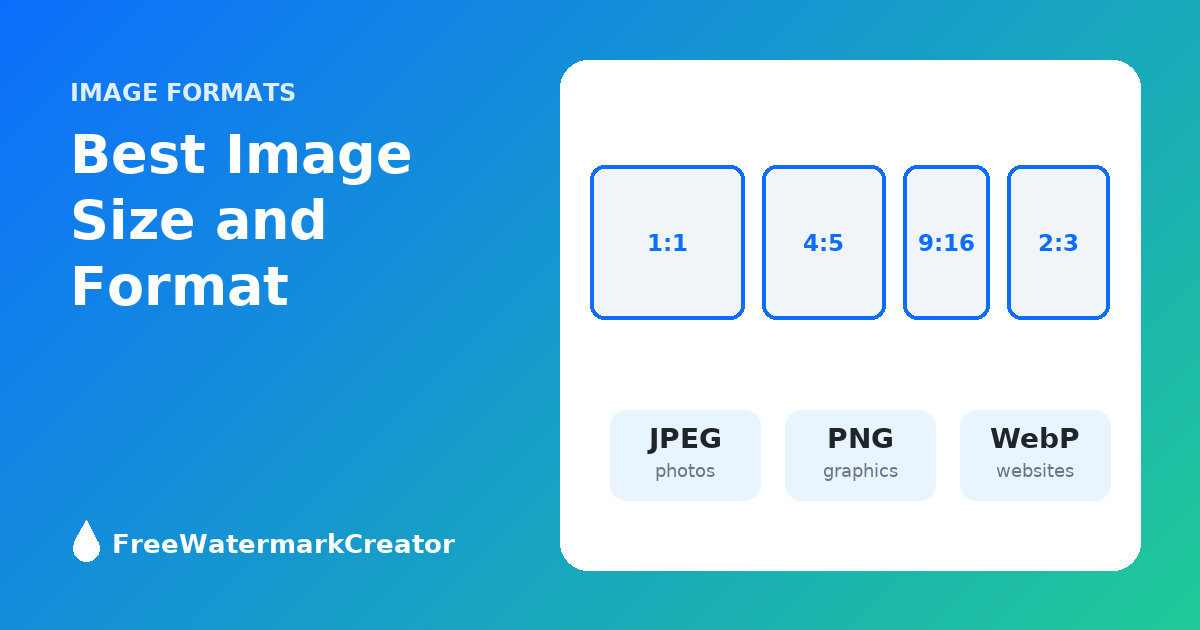
- Photos: JPEG for social media; WebP (or AVIF) on your own website.
- Logos, screenshots and graphics with text: PNG, or SVG for logos on a website.
- Instagram and Facebook posts: 1080 × 1350 (portrait) or 1080 × 1080 (square).
- Stories, Reels and TikTok: 1080 × 1920.
- Pinterest: 1000 × 1500. Link previews: 1200 × 630.
Which format to use
| Format | Best for | Transparency | Good to know |
|---|---|---|---|
| JPEG | Photos | No | Small files, accepted everywhere. Quality drops a little each time you re-save it. |
| PNG | Logos, screenshots, text, graphics | Yes | Keeps sharp edges perfectly, but photos saved as PNG are very large. |
| WebP | Photos and graphics on websites | Yes | Smaller than JPEG and PNG at similar quality; works in all current browsers. |
| AVIF | Photos on websites | Yes | Often smaller still than WebP; supported by current major browsers. |
| SVG | Logos and icons on websites | Yes | Drawn from shapes, so it stays sharp at any size. Not for photos. |
| GIF | Short, simple animations | Basic | Only 256 colors, so photos look grainy. Use video or WebP for longer clips. |
The simple rule: photos as JPEG, everything with sharp edges or text as PNG. A logo saved as JPEG gets fuzzy edges and loses its transparent background; a photo saved as PNG can be several times bigger than it needs to be.
WebP and AVIF: smaller files for websites
WebP and AVIF are newer formats that keep the same visual quality in noticeably smaller files. Google reports that WebP photos are typically 25-34% smaller than JPEGs of similar quality, and AVIF is often smaller again. Both support transparency, so they can also replace PNG.
- On your own website: use WebP or AVIF. Every current major browser supports both. If you need to support very old browsers, serve a JPEG fallback (see the example below).
- On social media: just upload JPEG or PNG. Platforms convert and compress images themselves, so uploading WebP gains you nothing.
Image sizes for social media

| Where | Size (pixels) | Shape |
|---|---|---|
| Instagram feed | 1080 × 1350, or 1080 × 1080 | 4:5 portrait or 1:1 square |
| Instagram Stories and Reels, TikTok | 1080 × 1920 | 9:16 |
| Facebook feed | 1080 × 1350, or 1080 × 1080 | 4:5 or 1:1 |
| 1000 × 1500 | 2:3 | |
| X (Twitter) | 1600 × 900 | 16:9 |
| LinkedIn post | 1080 × 1080, or 1200 × 627 | 1:1 or about 1.91:1 |
| YouTube thumbnail | 1280 × 720 | 16:9 |
| Link previews (shared links on most platforms) | 1200 × 630 | About 1.91:1 |
Platforms change their layouts from time to time, so check their help pages if something looks off. Two habits avoid most problems: crop to the right shape yourself, rather than letting the app crop for you, and keep important things away from the edges, where previews and buttons can cover them. For watermarks specifically, see our Instagram and Pinterest watermark guides.
Cropped and ready to post? Add your @handle before you share it.
Watermark a photo freeCompress without losing quality
- Resize first. The biggest saving is not uploading more pixels than will be shown. A 4000-pixel photo shown at 1080 pixels wide is mostly wasted.
- For the web, JPEG quality around 75-85 usually looks the same as the original at a fraction of the size. Check by zooming into skies and skin, where compression shows first.
- For social media, upload high quality at the right size. The platform compresses it again, and starting from a well-compressed copy can double the damage.
- Edit your original, not a copy of a copy. Each time a JPEG is re-saved it loses a little more detail.
- Free tools: Squoosh runs in your browser and compares quality side by side; ImageOptim (Mac) and TinyPNG are also popular.
Images on your own website
- Size images for how they're shown. Make them about twice the width they appear on screen, so they're sharp on high-resolution displays, and no bigger.
- Offer several sizes with
srcset, so phones download a smaller file than desktops. - Add
widthandheightto every image, so the page doesn't jump as images load. - Lazy-load images further down the page with
loading="lazy", but not the first image visitors see.
<picture>
  <source type="image/avif" srcset="photo-800.avif 800w, photo-1600.avif 1600w">
  <source type="image/webp" srcset="photo-800.webp 800w, photo-1600.webp 1600w">
  <img src="photo-1600.jpg" srcset="photo-800.jpg 800w, photo-1600.jpg 1600w"
       sizes="(max-width: 800px) 100vw, 800px"
       width="1600" height="1067" loading="lazy" alt="Describe the photo">
</picture>
The browser picks the first format it supports and the smallest file that looks sharp on the visitor's screen.
Where watermarking fits
- Edit and crop to the shape you'll post.
- Watermark with our free watermark tool. It keeps your image's size, saves photos as high-quality JPEG and graphics as PNG, and takes files up to 10 MB.
- Resize or compress for where it's going, if needed.
Watermarking before you resize means the watermark scales down with the photo and stays in proportion. For how to design it, see how to make a watermark.
Frequently asked questions
Keeps your image size. Photos come back as high-quality JPEG.
Getting ready to post? Run through our before-you-post photo checklist.